
All-in-One Image & SEO Tools, Fast & Free
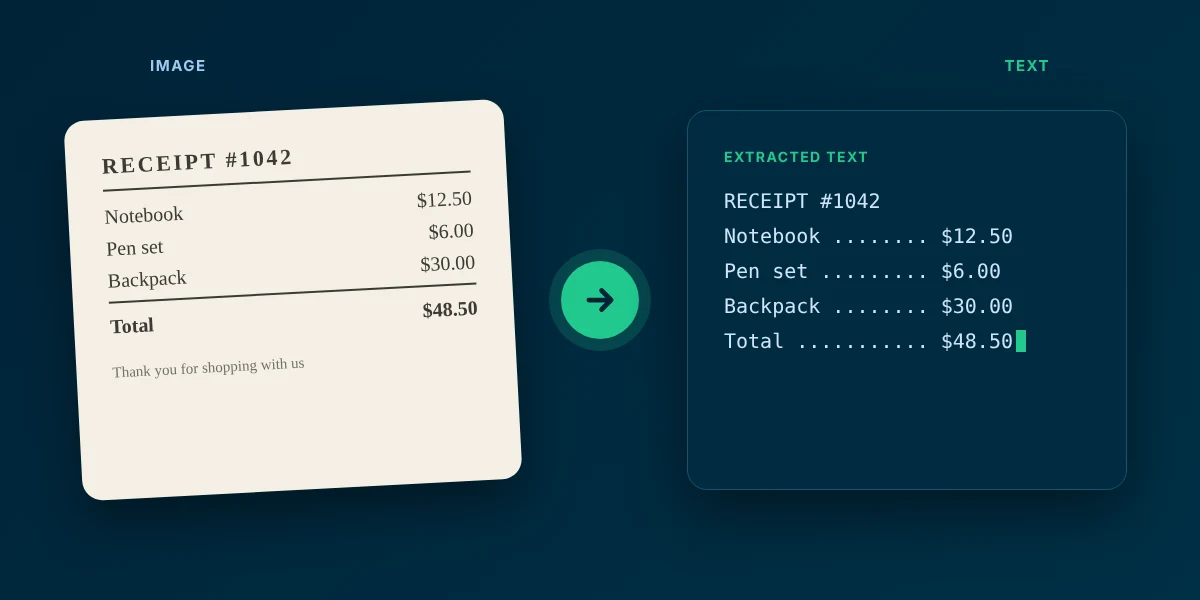
Stop retyping text from images. Upload a picture to this image to text converter and the OCR engine reads it for you, so you can copy, edit and search the words in seconds.
✓ Free, no sign-up ✓ Runs in your browser
Pull words out of photos, screenshots and scans.
Recognition happens in your browser.
Choose the language of your text.
Drop a JPG, PNG, WebP or BMP into the image to text converter, pick the language, and start extraction.
Loading PixelKit OCR Image to Text Converter...
Your images stay on your device. Text recognition runs in your browser.
HOW IT WORKS
Four steps, and no software to install.
1
Upload a file or drag and drop it into the tool.
2
Pick the language that matches the text in the picture.
3
The OCR engine reads the image and shows the text.
4
Copy the result to your clipboard or download it.
For the most accurate text
FEATURES
This image to text converter keeps things simple: no accounts and no extra steps, just usable text from your pictures.
OCR text recognition turns printed words in an image into text you can edit, search and paste anywhere.
Upload JPG, JPEG, PNG, WebP or BMP files straight from your phone, camera or screen capture.
Select the language of the text before extracting, so documents in other languages read correctly.
Add more than one image and work through them in the same session instead of starting over each time.
Send the text to your clipboard in one click or save it as a file to use in your own documents.
Recognition runs on your device, so receipts, IDs and personal documents aren’t sent to a server to be read.
FILE TYPES
The image to text converter accepts any of these. The best choice depends on where your picture came from.
Format
Where you’ll usually find it
What to know
JPG / JPEG
Phone and camera photos, scans, images saved from messaging apps
Heavy compression can blur small text. Use the original photo if you have it.
PNG
Screenshots, exported slides, digital graphics
Lossless, so text stays sharp. The best choice for screenshots.
WebP
Images downloaded from websites and social platforms
Works like JPG or PNG for OCR. Quality depends on how it was saved.
BMP
Older scanners, legacy software, some Windows screen captures
Uncompressed and accurate, but the files can be large.
Have a different format? Convert it to PNG or JPG first, then upload it. You will often meet WebP, a modern format used by many websites, and it works too.
LANGUAGES
OCR works best when it knows what language to expect. Choose the language of your text before you start, and the image to text converter uses the right character set and dictionary to read it.
EnglishUrduArabicHindiBanglaTamilJapanese
The language menu in the tool shows everything available.
Pull text from a letter, notice or form so you can paste it into a translator.
Copy text from chat screenshots, social posts and app screens where the words are locked inside an image.
Turn book pages, notes and handouts into text you can edit and search.
PDF FILES
Not every PDF is the same, and the right method depends on how the file was made.
Documents exported from Word, Google Docs or a website already contain real text. You can usually select and copy it directly, or extract it without OCR.
A scan is just a picture of each page, so there is no text to copy. OCR reads the page images and recreates the text.
Only need one page? Save it as a PNG or JPG and upload it to the image to text converter. Long scans take longer, so working page by page is also faster.
Working with a multi-page scanned PDF? Use the dedicated PDF text tool instead of converting each page by hand.
USE CASES
Copy error messages, chat text, quotes and web content you can’t select.
Digitize letters, contracts and forms so they can be searched and edited.
Snap a sign, page or whiteboard and copy the words without typing.
Pull out totals, dates and item lines for expense reports or bookkeeping.
Convert scanned pages into editable text for rewriting or archiving.
Grab passages from textbook pages and handouts for notes and flashcards.
Working with documents in more than one language? Run each image through the image to text converter with the matching language selected.
FAQ
An image to text converter uses OCR (optical character recognition) to read the letters and numbers in a picture and return them as text you can copy, edit and search. It works on photos, screenshots and scans of printed material.
Upload or drag and drop your image into the tool, choose the language of the text, and start extraction. When the result appears, copy it or download it. Clear, well-lit images give the best results.
Yes. You can use the tool for free and you don't need to create an account.
JPG, JPEG, PNG, WebP and BMP. If your picture is in another format, convert it to one of these first.
Yes. Screenshots usually produce very clean results because the text is digital and sharp. Save the screenshot as PNG for the best quality, then upload it like any other image.
Yes. You can add several images and process them in the same session, then copy or download the text for each one. Very large batches may be slow on older phones and computers.
Yes. Select the language of the text before you start extraction, because recognition works best when the language matches the image. The language menu inside the tool shows every language that is available.
This tool reads images. A scanned PDF is a set of page pictures, so it needs OCR page by page. Use our scanned PDF to text tool for that, or save a PDF page as a PNG or JPG and upload it here.
It depends on the image. Sharp, high-contrast printed text is usually recognised very well. Blurry photos, small text, strong shadows, decorative fonts and handwriting are harder, so always proofread the result before you rely on it.
No. Text recognition runs in your browser, so your images are not uploaded to a server for processing. Closing or refreshing the page clears the images and results from that session.
Upload it and have the text ready to copy in a few seconds.