
All-in-One Image & SEO Tools, Fast & Free
PixelKit Hub
Online PDF splitter · Free · Private
Use this online PDF splitter to divide a PDF into several files, or separate pages from a PDF and keep only the ones you need. It runs 100% in your browser, so your PDF is never uploaded. Free, no signup, no watermark.
Up to 100 MB per PDF and up to 200 files per run.
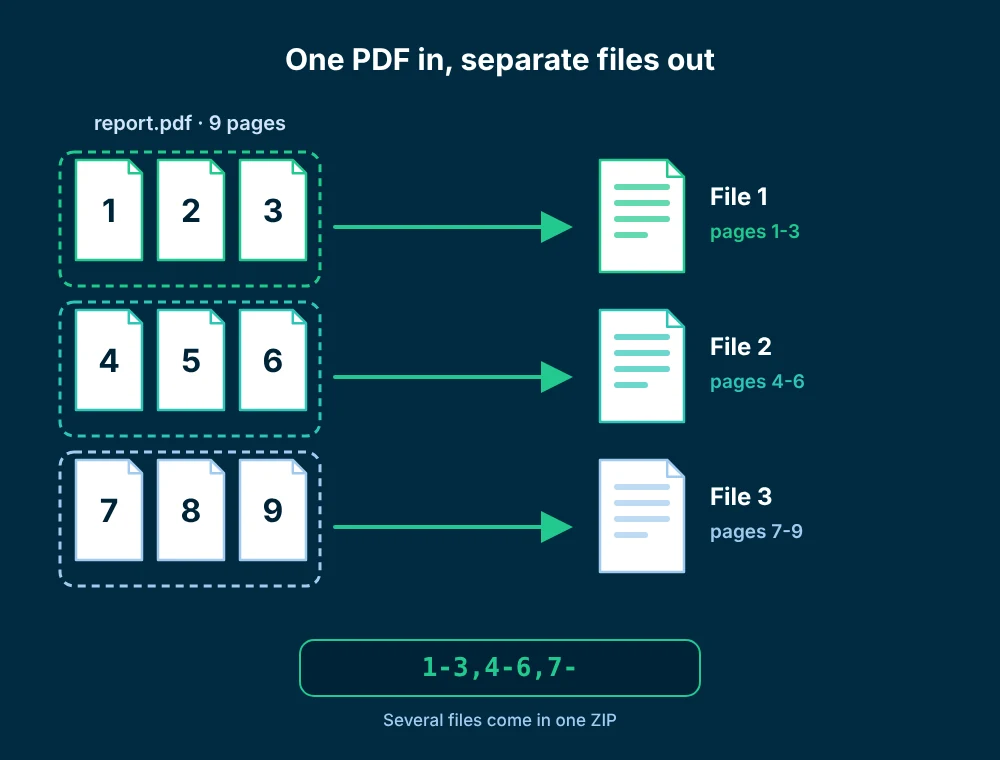
Illustration: a 9-page PDF split with 1-3,4-6,7-.
Loading Split PDF...
Processed in your browser. Your files never leave your device.
How it works
Add your PDF, choose a mode and press the button to separate pages from a PDF or split it into files. The page previews show where each page goes before you split. Several files arrive in one ZIP; a single result is a plain PDF.
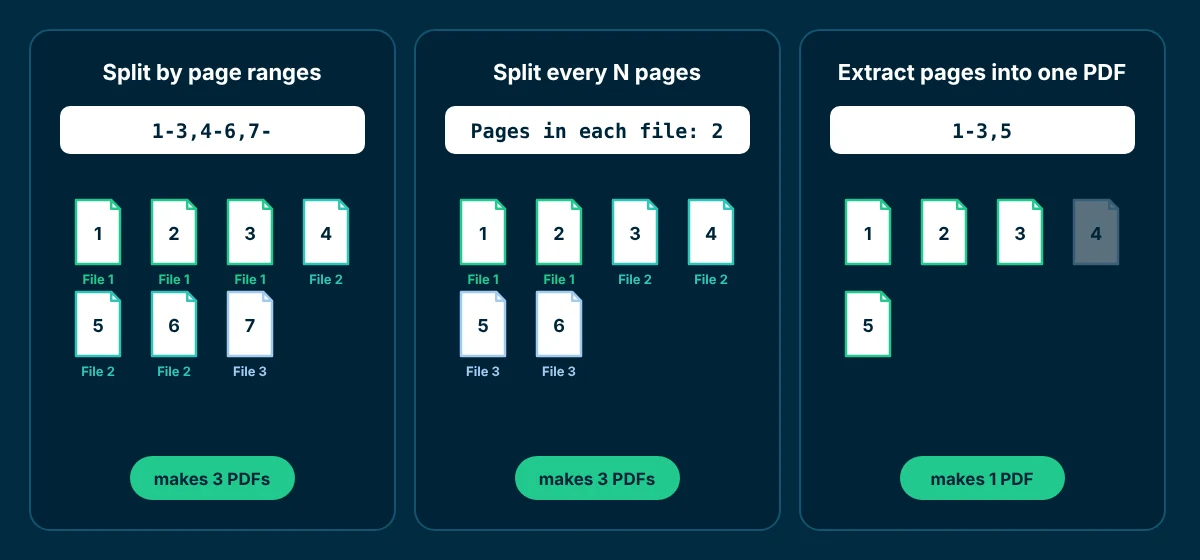
Split pages in a PDF by range: type pages like 1-3,4-6,7-. Each part between commas becomes its own PDF, and 7- means page 7 to the end.
Enter a number and the PDF is cut into files of that many pages. Enter 1 to split a PDF into single pages, one file each.
Extract pages from a PDF: type pages like 1-3,5 and they go into one new PDF, in the order you typed them. A simple way to separate pages from a PDF.
Use cases
A statement or supplier bundle holds many invoices. Separate pages from a PDF and keep only the ones you need to send or file.
Cut a long report or ebook into chapter ranges and share just the part someone needs.
Scanned a stack of documents into one PDF? Separate pages from a PDF by splitting every few pages to get one file per document.
Break a large PDF into smaller files so each attachment is easier to send.
Privacy
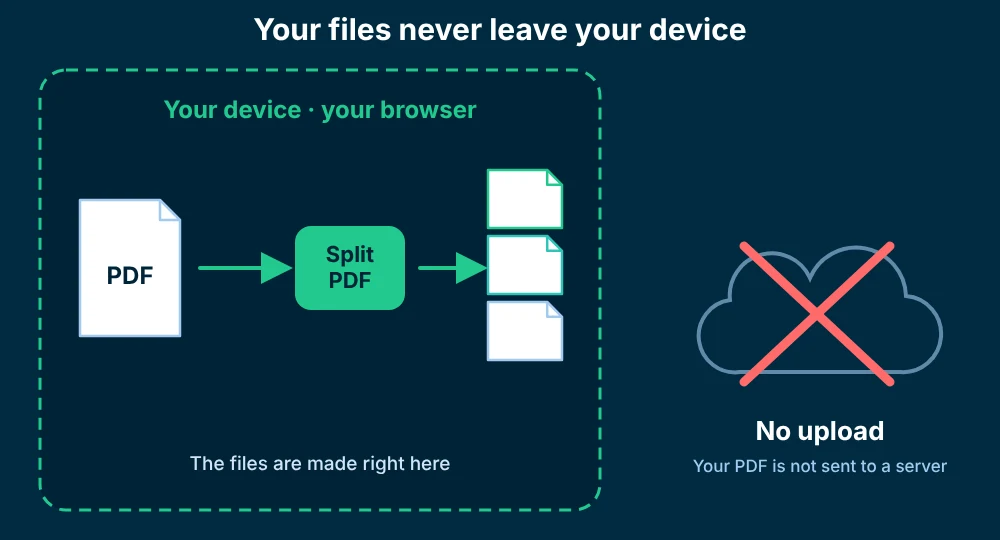
Splitting happens inside your browser. Your PDF is read from your own device with the browser’s File API and the new files are built there, so nothing is uploaded to PixelKit Hub or anyone else. No account needed.
Split, extract or merge?
Use the range or every-N modes to divide a PDF into several files.
Use Extract pages to separate pages from a PDF and keep only some of them together in one new PDF. Need to turn pages? Use Rotate PDF.
Want pictures instead? PDF to Image saves pages as JPG or PNG, and Image to PDF turns pictures into a PDF. New to the format? The PDF Association explains PDF and its ISO 32000 standard.
FAQ
To separate pages from a PDF, add your PDF, choose Extract pages into one PDF, type the page number (for example 5) and press Extract pages. You download a one-page PDF.
Choose Split by page ranges, such as 1-3,4-6,7-, or Split every N pages. Several files arrive in one ZIP, named like report-pages-04-06.pdf.
It is a free PDF split tool with no signup and no watermark. Your PDF is read and split in your browser, so it is never uploaded.
It runs in your browser, so on a Mac or any computer there is nothing to install. Open this page, add your PDF and choose how to split it.
A password-protected or damaged PDF cannot be split, so the tool shows an error instead. Remove the password or save an unprotected copy, for example by printing to PDF, then try again.
Choose Extract pages into one PDF, type the pages you want, for example 1-3,5, and download the new PDF. It is free, with no signup.
Yes. Choose Split every N pages and enter 1. You get one PDF per page in a ZIP, up to 200 files at a time.