
All-in-One Image & SEO Tools, Fast & Free
Free PDF tool · Runs in your browser
This free image to PDF converter turns JPG, PNG and WebP pictures into one PDF. Add your images, put them in order and download the file, with no signup and no watermark.
Nothing is uploaded.
Free, and the PDF is clean.
Full control before you convert.
The tool
Loading Image to PDF Converter...
Your files never leave your device. The PDF is created in your browser, so photos, scans and documents are not uploaded to a server.
How it works
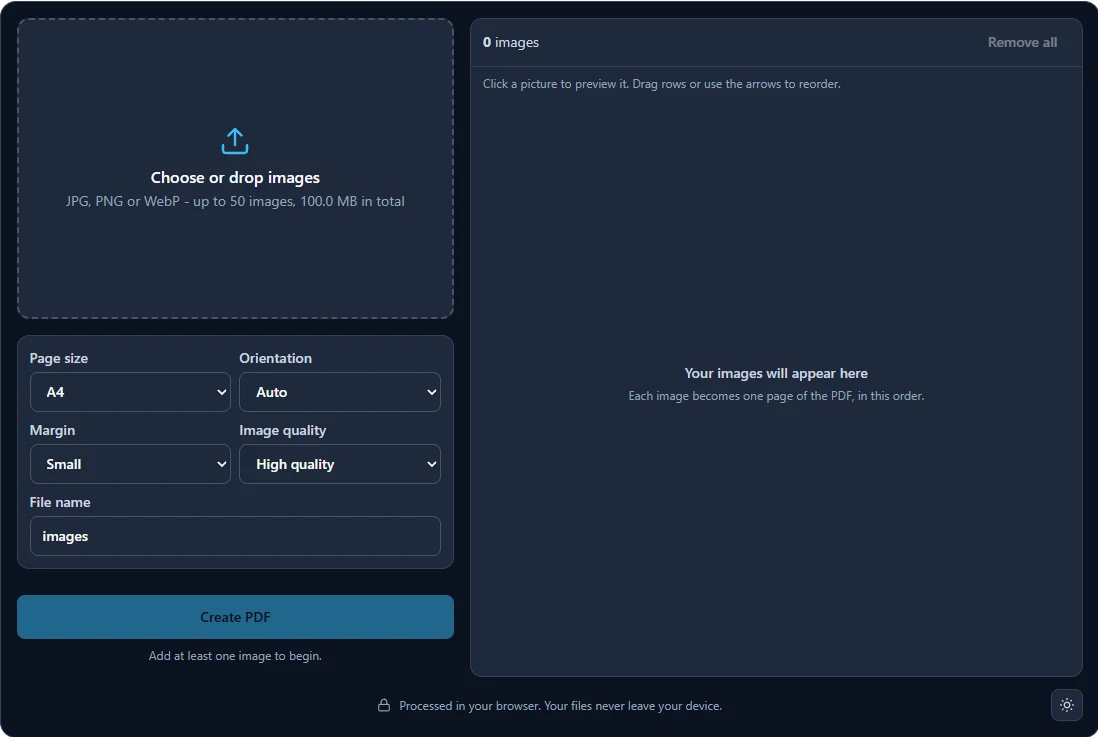
The tool at a glance: add images on the left, check the order on the right, then create the PDF.
01
Drag JPG, PNG or WebP files in, or choose them from your device.
02
Drag thumbnails or use the arrows to set the order. Rotate or remove images.
03
Pick page size, orientation, margin and image quality.
04
Type the file name you want, for example receipts-november.
05
Each image becomes one page, in the order shown.
Options explained
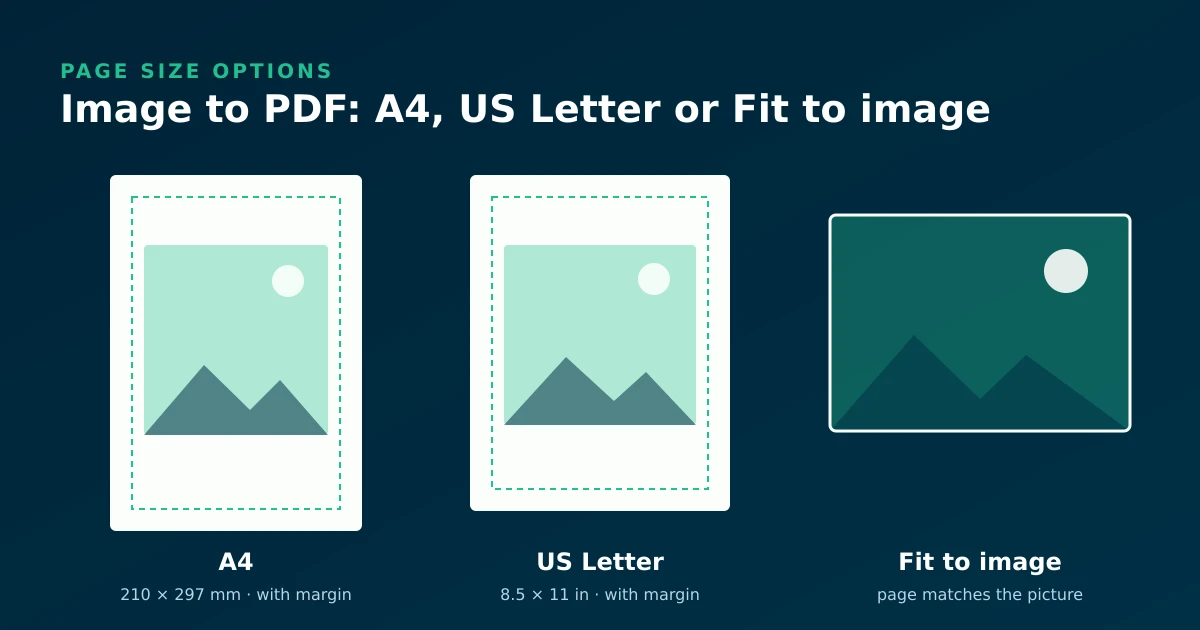
A4 and US Letter add a margin around the picture. Fit to image makes the page the same size as the picture.
Choose A4 (an ISO 216 size) or US Letter for anything printed or submitted as a standard document. Choose Fit to image for no white space, which suits screenshots, receipts and artwork.
Portrait suits scanned pages and ID photos. Landscape suits wide photos and desktop screenshots. Matching it to the picture lets the image fill more of the page.
Add a margin if you plan to print, so a printer does not clip the edges. Keep it at zero for PDFs that will only be read on screen.
Use a high quality for text scans, receipts and ID photos, where small print must stay readable. A lower quality is fine for ordinary photos when you want a lighter file.
Pages follow the order of the thumbnails. If you photographed a document page by page, check the sequence before you convert.
Why PixelKit
The PDF is built in your own browser, so private documents stay private.
Nothing is uploaded, which matters for ID copies, contracts and private photos.
It is free, and the PDF is yours as is.
Reorder, rotate, remove, and pick the page size, margin and quality yourself.
Common uses
Photographed pages joined into one file to email.
Bundled for an expense claim.
A front and back scan saved as a single two-page PDF.
Collected into a short guide or bug report.
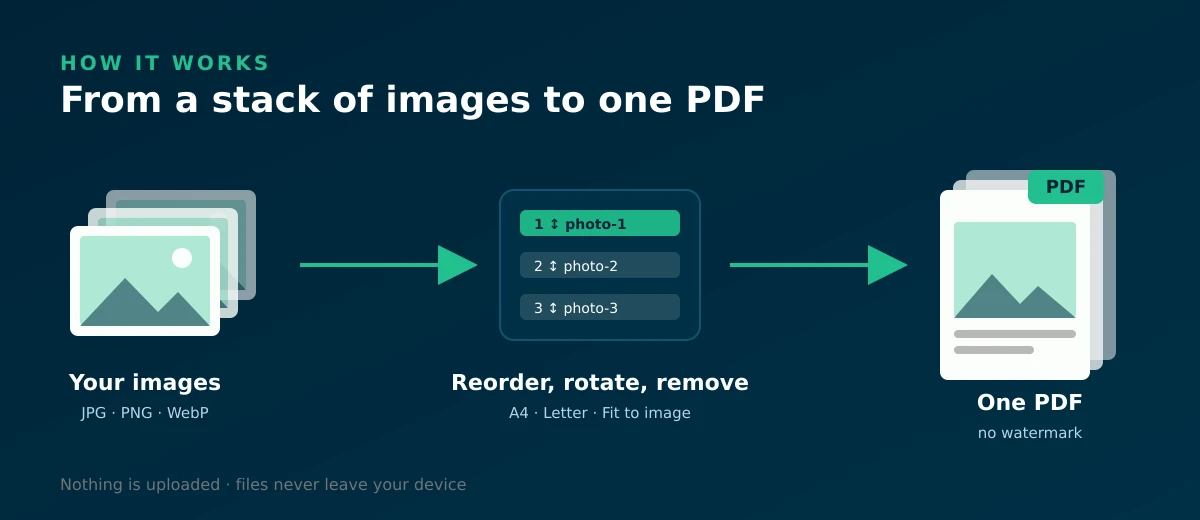
From a stack of images to one PDF, all in your browser.
Limits
50
Add up to 50 images at a time.
100 MB
Total size of the images you add in one go.
~36 MP
Very large images are scaled down to about 36 megapixels. Most phone photos are below that.
3 formats
HEIC, GIF, BMP and TIFF are not supported.
Image-only
Pages are pictures, so text can’t be selected. For the words, use Image to Text.
No extras
The tool does not compress the finished PDF or add a password.
FAQ
Add the JPG to the tool above, choose a page size, and download the PDF. For several JPGs, add them all, arrange them in the order you want, and they become pages of one PDF. JPEG and JPG are the same format, so both work.
Yes. It is free, with no watermark and no account. PNG screenshots and graphics stay crisp if you set the quality to its highest value and use Fit to image, so the page matches the picture instead of scaling it.
Add all the images at once, drag them or use the arrows until the order is right, then convert. Each image becomes one page. If you later need to join this PDF with other PDFs, use the Merge PDF tool.
Add them like any other image. Photos are rotated by their EXIF orientation, so portrait shots from a phone come out upright. If an iPhone photo is HEIC, switch the camera format to Most Compatible or convert it to JPG first, because HEIC is not supported.
No. The PDF is built by your browser, on your device, and the images are never sent anywhere. That is why there is no signup, and it is also why a very large batch depends on how much memory your device has.
Use A4 or US Letter when the PDF will be printed or submitted as a standard document. Use Fit to image when you want no white space around the picture, such as for screenshots, receipts or artwork.
Not with this tool. It accepts JPG, PNG and WebP only. Convert other formats to one of those first, then add them here.
No. Each page is a picture of your image, so the text inside it is not selectable. To pull the words out of a photo or scan, run it through the Image to Text tool instead.
Related PDF tools
See every tool on the PixelKit PDF tools page.