
All-in-One Image & SEO Tools, Fast & Free
Free PDF tool · Runs in your browser
This free PDF to image converter turns PDF pages into JPG or PNG pictures right in your browser. Choose the pages and the resolution, then download the result with no signup and no watermark.
Nothing is uploaded.
Free, and the images are clean.
Pick the format, resolution and pages.
The tool
Loading PDF to Image Converter...
Your files never leave your device. The images are created in your browser, so contracts, scans and statements are not uploaded to a server.
How it works
01
Drag the file into the drop area, or choose it from your device.
02
Select JPG or PNG, depending on what you plan to do with the images.
03
Pick a higher setting for printing or zooming, a lower one for quick sharing.
04
Convert the whole document, or only the pages you need.
05
Each PDF page becomes its own image. Save them one by one, or together if the tool offers a bundle for your file.
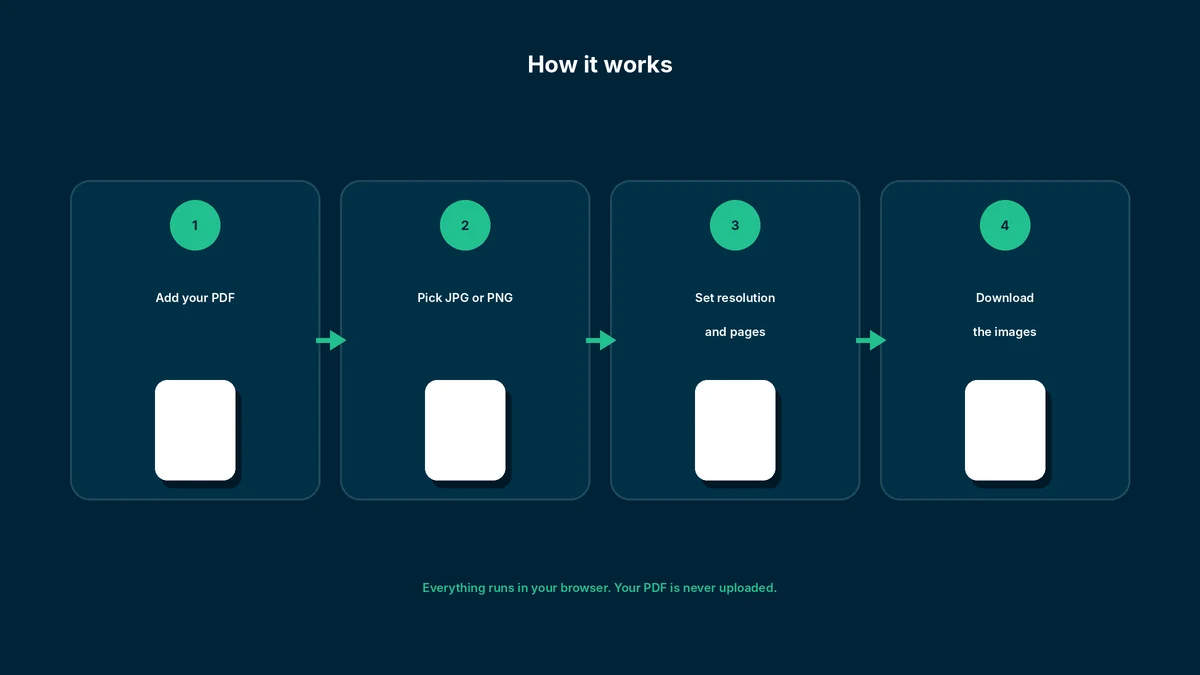
The tool at a glance: add your PDF, choose the format and pages, then convert and download.
Options explained
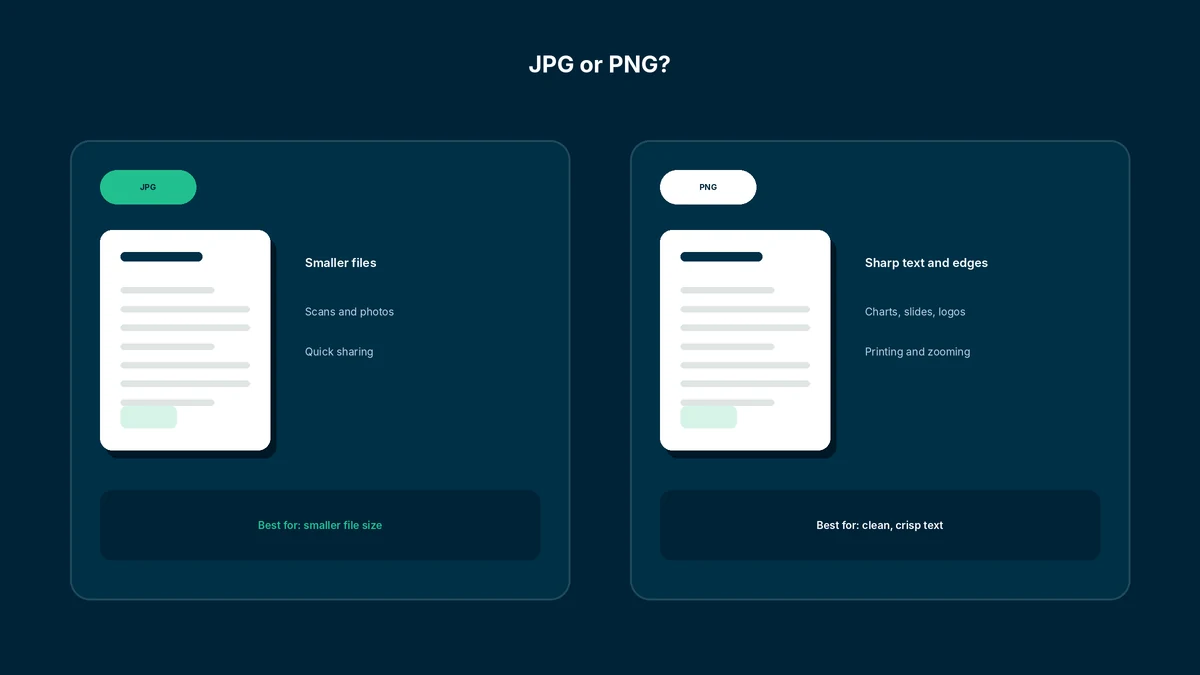
JPG keeps files small, PNG keeps text sharp. Pick the one that fits the job.
Use JPG for scans and photos where a smaller file matters. Use PNG for text-heavy pages, charts and logos, where clean edges matter more than file size.
Higher resolution gives sharper text and bigger files. Use a standard setting for chat and email, and a higher one for zooming in or reading small print.
Export only the pages you need, such as the signature page or one invoice from a long file. It saves time and keeps your downloads tidy.
For receipts, invoices and printed copies, choose PNG at a higher resolution. For scanned pages and ID photos, JPG at a standard or high setting is usually enough.
For slides in a document or blog post, PNG at a standard resolution works well. For chat apps and email, JPG keeps the file light.
Why PixelKit
The conversion happens in your own browser, so private documents stay private.
Nothing is uploaded, which matters for contracts, ID scans and bank statements.
It is free, and the images are yours as they are.
Pick the format that suits scans, slides or screenshots.
Export only the pages you want, at the resolution you choose.
Common uses
A single PDF page shared as a picture.
A page dropped into a document or blog post.
A signed page saved as JPG or PNG for a form that only accepts images.
Saved as pictures for your records.
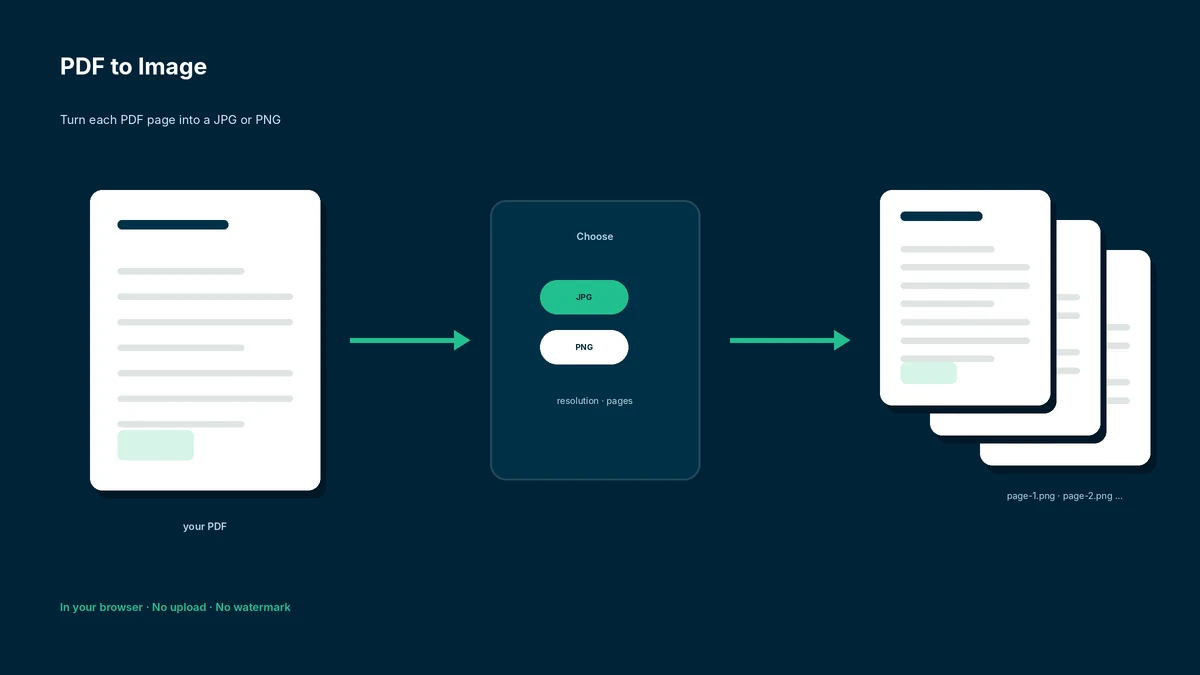
From a PDF to pictures, all in your browser.
Limits
2 formats
Output is JPG or PNG. TIFF and BMP are not supported.
Whole pages
Each page is rendered as it looks on screen, text included. To use one picture, crop it from the page image.
Your device
Large PDFs with many pages use your device’s memory. If the browser slows down, convert fewer pages at a time.
Unlocked
A password-protected PDF has to be unlocked before you convert it.
Image-only
The result is pictures, so text can’t be selected. For the words, use Image to Text.
No extras
The tool does not edit the pages or recognize text (OCR).
FAQ
Yes. This converter is free, has no watermark and needs no account. Add your PDF, choose JPG as the format and download the pages as images.
Open the tool above, add your PDF and select PNG as the output format. PNG keeps sharp edges and text crisp, so it suits screenshots, slides and documents with fine print.
Use JPG for scanned pages and photos where a smaller file matters. Use PNG for text-heavy pages, charts and logos, where you want clean edges and no compression artifacts.
Yes. Each PDF page is converted into a separate image file, and you can choose which pages to export instead of converting the whole document. To pull pages out of a PDF as a new PDF instead, use Split PDF.
Not exactly. This tool renders each page as it looks on screen, so you get the whole page, text included. If you only need one picture from a page, convert the page and crop it in any image editor.
Convert the page to PNG at a higher resolution. You get a clean image of the page without window borders, scroll bars or screen glare, which a normal screenshot would include.
No. The tool outputs JPG and PNG. Both open on virtually every phone, computer and website, and you can convert a PNG to other formats later if a specific program demands it.
The conversion runs inside your browser, so the file is not uploaded to our servers. That makes it a sensible choice for contracts, ID scans and bank statements.
Related PDF tools
See every tool on the PixelKit PDF tools page.
Free PDF tool · Runs in your browser
This free PDF to image converter turns PDF pages into JPG or PNG pictures right in your browser. Choose the pages and the resolution, then download the result with no signup and no watermark.
Nothing is uploaded.
Free, and the images are clean.
Pick the format, resolution and pages.
The tool
Your files never leave your device. The images are created in your browser, so contracts, scans and statements are not uploaded to a server.
How it works
01
Drag the file into the drop area, or choose it from your device.
02
Select JPG or PNG, depending on what you plan to do with the images.
03
Pick a higher setting for printing or zooming, a lower one for quick sharing.
04
Convert the whole document, or only the pages you need.
05
Each PDF page becomes its own image. Save them one by one, or together if the tool offers a bundle for your file.

The tool at a glance: add your PDF, choose the format and pages, then convert and download.
Options explained
JPG keeps files small, PNG keeps text sharp. Pick the one that fits the job.
Use JPG for scans and photos where a smaller file matters. Use PNG for text-heavy pages, charts and logos, where clean edges matter more than file size.
Higher resolution gives sharper text and bigger files. Use a standard setting for chat and email, and a higher one for zooming in or reading small print.
Export only the pages you need, such as the signature page or one invoice from a long file. It saves time and keeps your downloads tidy.
For receipts, invoices and printed copies, choose PNG at a higher resolution. For scanned pages and ID photos, JPG at a standard or high setting is usually enough.
For slides in a document or blog post, PNG at a standard resolution works well. For chat apps and email, JPG keeps the file light.
Why PixelKit
The conversion happens in your own browser, so private documents stay private.
Nothing is uploaded, which matters for contracts, ID scans and bank statements.
It is free, and the images are yours as they are.
Pick the format that suits scans, slides or screenshots.
Export only the pages you want, at the resolution you choose.
Common uses
A single PDF page shared as a picture.
A page dropped into a document or blog post.
A signed page saved as JPG or PNG for a form that only accepts images.
Saved as pictures for your records.
From a PDF to pictures, all in your browser.
Limits
2 formats
Output is JPG or PNG. TIFF and BMP are not supported.
Whole pages
Each page is rendered as it looks on screen, text included. To use one picture, crop it from the page image.
Your device
Large PDFs with many pages use your device’s memory. If the browser slows down, convert fewer pages at a time.
Unlocked
A password-protected PDF has to be unlocked before you convert it.
Image-only
The result is pictures, so text can’t be selected. For the words, use Image to Text.
No extras
The tool does not edit the pages or recognize text (OCR).
FAQ
Yes. This converter is free, has no watermark and needs no account. Add your PDF, choose JPG as the format and download the pages as images.
Open the tool above, add your PDF and select PNG as the output format. PNG keeps sharp edges and text crisp, so it suits screenshots, slides and documents with fine print.
Use JPG for scanned pages and photos where a smaller file matters. Use PNG for text-heavy pages, charts and logos, where you want clean edges and no compression artifacts.
Yes. Each PDF page is converted into a separate image file, and you can choose which pages to export instead of converting the whole document. To pull pages out of a PDF as a new PDF instead, use Split PDF.
Not exactly. This tool renders each page as it looks on screen, so you get the whole page, text included. If you only need one picture from a page, convert the page and crop it in any image editor.
Convert the page to PNG at a higher resolution. You get a clean image of the page without window borders, scroll bars or screen glare, which a normal screenshot would include.
No. The tool outputs JPG and PNG. Both open on virtually every phone, computer and website, and you can convert a PNG to other formats later if a specific program demands it.
The conversion runs inside your browser, so the file is not uploaded to our servers. That makes it a sensible choice for contracts, ID scans and bank statements.
Related PDF tools
See every tool on the PixelKit PDF tools page.